
Why a white background works for a profile picture
A profile picture is usually seen as a small circle next to your name. At that size, a busy room, a bookshelf or a car seat behind you pulls attention away from your face. A white background profile picture removes that noise, so the only thing people notice is you.
White also looks tidy next to almost any interface. On LinkedIn, in a company directory or on a résumé, it reads as professional without looking like a studio portrait.
Where to use it
- LinkedIn and job sites: a calm, neutral photo for recruiters and new contacts.
- Résumés and CVs: if you add a photo, white keeps the page clean when it is printed.
- Work tools: Slack, Microsoft Teams, Zoom and Google accounts, so colleagues see the same face everywhere.
- Freelance and marketplace profiles: Upwork, Fiverr and similar sites, where buyers judge you by a thumbnail.
- Team and "About us" pages: give every staff photo the same white background so the page looks planned.
How to make one in three steps
- Upload a photo of yourself. A phone selfie or a picture a friend took is fine.
- Choose White. Cutmora cuts you out and places you on pure white (#FFFFFF).
- Check and download. Use Compare to look at your hair, then download a PNG or JPG.
Photo tips for a better result
- Use soft daylight. Overhead lamps cast shadows under the eyes. Daylight from in front of you looks more natural, and it matters more than the room you shoot in.
- Mind your clothes. A white shirt on a white background can make your shoulders disappear. Wear a darker top, or pick Light gray instead of White.
- Leave space around your head. Most sites crop profile pictures into a circle, so keep your head and shoulders in the middle of the frame.
- Check fine hair. Zoom in on loose strands. When a faint trace of the room still shows, nudge Edge cleanup until it disappears.
Size and format
Most platforms want a square image. LinkedIn, for example, recommends at least 400 × 400 pixels. Cutmora keeps your photo's original shape, so crop it to a square in your phone's photo editor before or after you upload. Download JPG for a small file, or PNG for the sharpest result.
Official photos are different. Passports, visas and many ID cards have strict rules for size, shade and lighting, so follow the official requirements for those.
Other looks for your photo
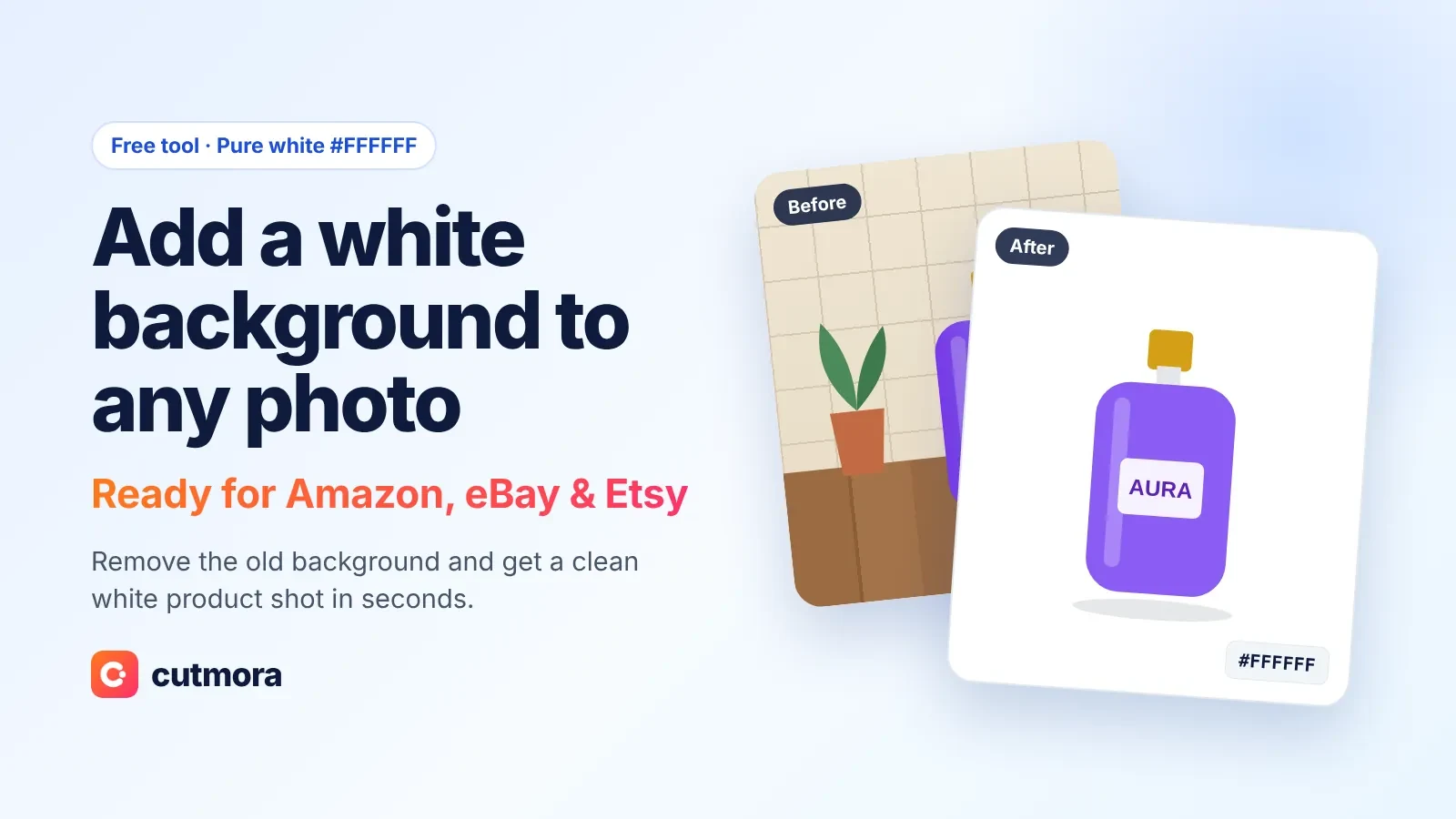
This page is tuned for portraits. For products and marketplace listings, use add white background to photo instead.
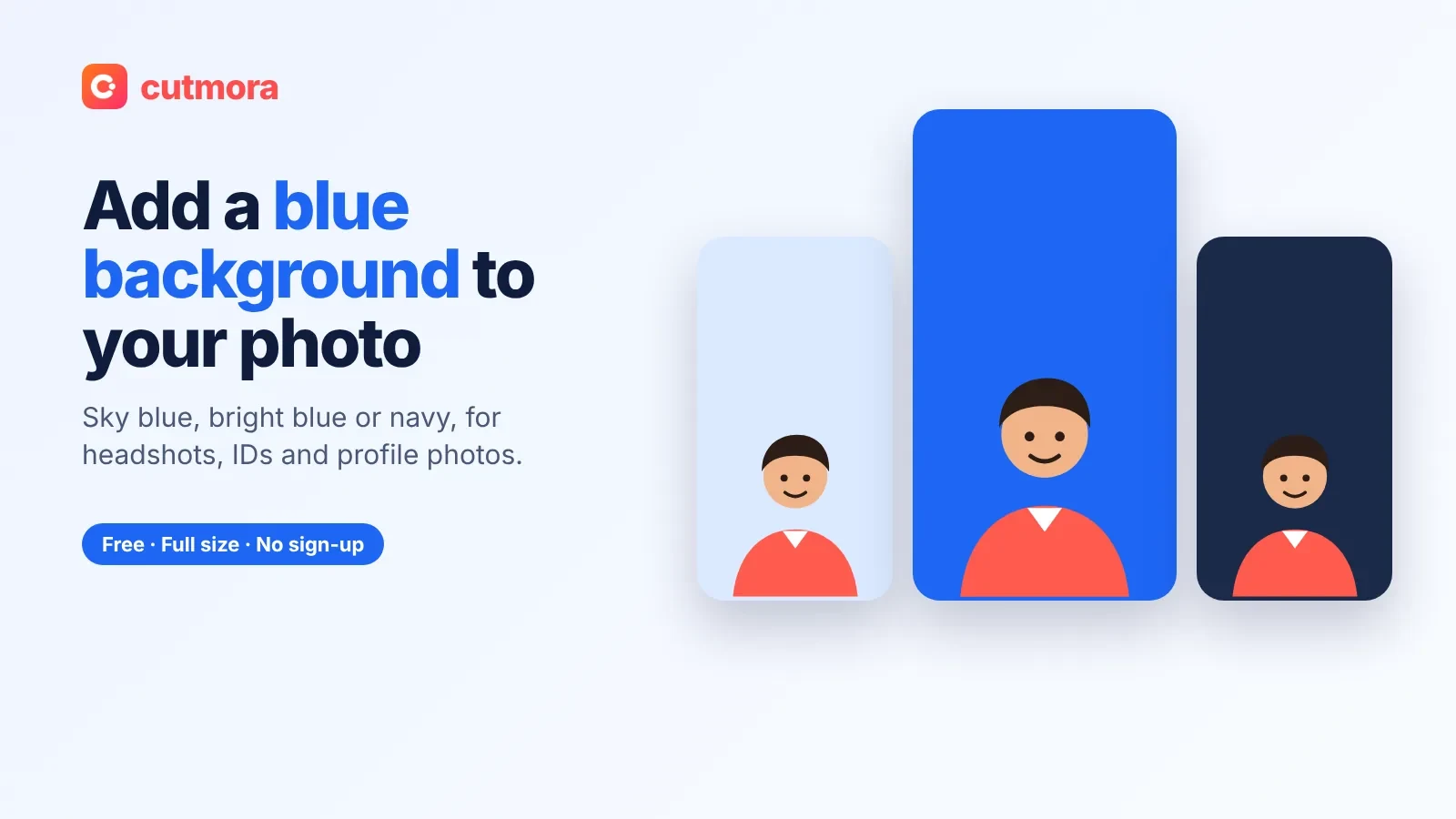
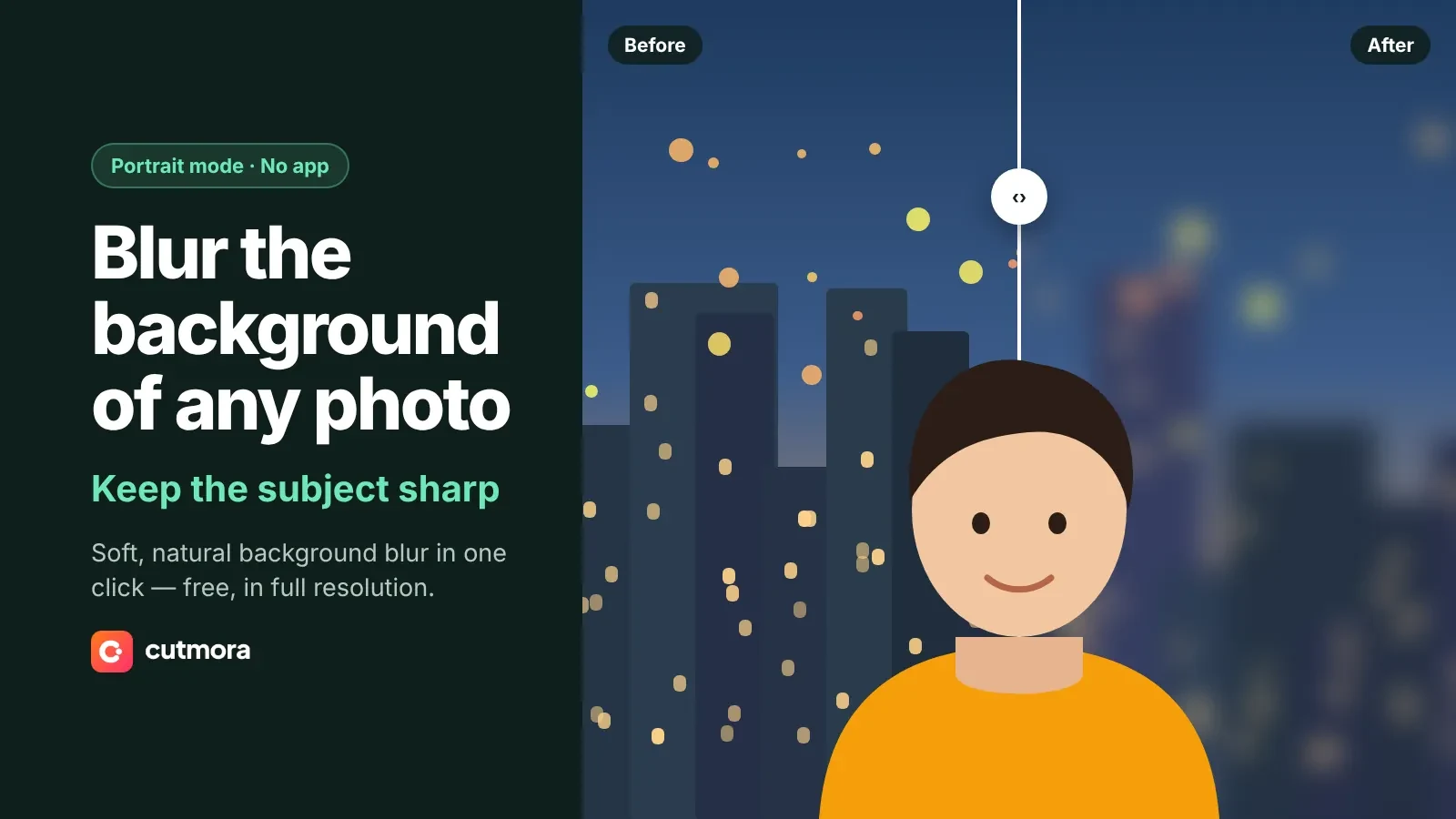
Prefer something softer? Blur the background to keep the original scene out of focus. For a colored look, see blue background or add background color to photo.
Privacy matters with a photo of your face. Cutmora handles each upload in temporary memory, removes it once your result is ready, and does not keep a copy for AI training.